Showing posts with label productivity. Show all posts

FREE eBook eReader software - An App for iPod Touch/ iPhone Compatible with iOS version 4.2

Post last updated: October 2014. Updated Freading 1.0 link below. Freading 2.1 doesn't support iOS 4.2 compatible devices.

"The most technologically efficient machine that man has ever invented is the book." - Northrop Frye.


You are reading this because you are a good reader and you want your old iPod or iPhone to be able to carry your best friend - the ebook ereader. But alas, you know that the iBooks app requires a minimum of iOS 7.0 whereas your iPod Touch can no longer travel the iOS road beyond its 4.2.1 limit.

Here comes our rescue partner, when I was exactly at that crossroads. Left alone to ponder over this issue with some apps that promise to deliver but fail what I really wanted - to just read books. Simple. That's it.

Finding your perfect eReader app for free for your old iOS device with 4.2.1 as the last version has become easier now.

EDIT: Freading, as on October 2014 is upgraded to 2.1 in the Apple App Store and is no longer compatible with iOS 4.2 devices. Hence, I am providing my archived version (Freading 1.0) that I use in my iPod Touch with iOS 4.2 version.

You can download the older version of Freading from here.


The app's name is Freading - Library Ideas, LLC this app comes to our rescue. It does a simple job - let's you read, peacefully. 

Supports ePub, PDF - the two of most used ebook formats. Best of all, this app comes for free!

This app is available from the iTunes Appstore, with the base version as iOS 4.0. Compatible with iPhone, iPad and iPod Touch.

Let me know your thoughts and other app suggestions. Please leave your comments below.

 Download Freading 1.0  

Quick Tech Trick # 8: How To Open Microsoft Command Prompt Window In Any Folder

If you've have tried navigating to a specific folder using Windows Command Prompt Screen by manually typing the code in that little black window screen, you will agree with me that even pros sometimes have to do a trial and error to get it correct.


That's when this surprise little trick will come in handy:

Whenever you want to open the command window in a particular location, just do a 'shift + right click' on a blank space within that folder and you'll find a new context menu entry there – "Open Command Window Here".

If you are an avid command prompt user, you will thank this trick (of course if you didn't know about this earlier).


Written by Arun Sarathy


WearFin - A Wearable Thumb Gadget - A Breakthrough Invention By An Indian


Technology keeps changing everyday. There is some new invention in some part of the world every day. Only some ideas make to the top and get named as Facebook, Google, Apple and become a huge fan following brands. Though we come across many such ideas daily, only few makes our heads turn and in this case the fingers.

"Fin" is a small wearable device that can be worn on your thumb as a ring and it can convert your palm into a gesture controlled station. This project has raised about $202,448 from some 1500+ people around the world who have pre-ordered the product as well.


This new invention is by an Indian from a state that is commonly known as God's own country, Kerala. Rohildev N, is a 23 year old young grad from Kathir College of Engineering in Coimbatore, Tamil Nadu. Few months ago, he had setup his own startup, RHL Vision Technologies.


RHL Vision Technologies was among 50 startups shortlisted from around the world to pitch and showcase their ideas at Pioneers Festival, one of Europe's largest startup events, held in Vienna last year. It was one of the top 15 companies (from 11 countries) at the TechCrunch CES Hardware Battlefield in Las Vegas this year, a competition for hardware startups. And Rohildev would have been the youngest speaker at the Mobile World Congress in Barcelona in February. (Source:http://timesofindia.indiatimes.com/tech/tech-news/Indian-wearable-device-Fin-gets-huge-pre-orders/articleshow/31761591.cms)


Worn as a ring on your thumb, this device can be used to control virtually any bluetooth and infrared based devices like TV Remote controls, SmartPhones, Wheelchairs, iPods, Cameras, and can be used in many other ways.

"There's no effort, no stress. Unlike other touchless technologies, you don't have to raise your hand, wave your arms, nothing that tires you," says Rohildev.


Fin will be priced at $120 each, but that cost could come down with mass manufacturing. The first shipments are expected in September. "The Indiegogo campaign helped us identify some good manufacturers and distributors too. Many want to fund us now. We expect to finalize a $1 million funding in another month," says Rohildev.

All the best to the team!


Posted by Arun Sarathy

Information sources:
http://www.wearfin.com/
https://www.indiegogo.com/projects/fin-wearable-ring-make-your-palm-as-numeric-keypad-and-gesture-interface


Best Way To Search Fresh Recent Results In Google

If you want to search the internet using Google and if you want search results that are only recent ones - probably a week or month old, then follow this trick while searching in Google.


This trick is especially useful when using Google Maps and Products to search more relevant and also recent updates.

After the search query is typed in the Google search bar, select the Search Tools drop-down option.


Then select Any Time drop down


Now select the time frame you need to filter the search results.


There is also a 'Custom Range' feature available for you to select from. Pretty neat!


Know any other neat tricks in Google search that you think the World may not be aware of? Please do input your comments below.


3 Top Ways To Read Online Effectively By Tackling Distractions

Earlier, reading was done using the 'hard bound' or 'Paper back' books, before the advent of computers. Then, the distractions were little less - as there were no popup advertising inside a book, or a mail notification showing up in the corner of the page nor a 'related' content showing up at the end of the page before turning to the next one.


However, these are some of the common distractions faced by every one of us while a serious online reading is taking place - a silent conversation between our eyes and the computer screen that shows the content. People like us get easily distracted in this modern age - at the same time there are so many online bookstores with plethora of online textbooks and educational websites.


Here are some practical tips that will help you overcome the dreaded distractions while reading online:

  1. Use Readability plugin for browsers (Google Chrome and Mozilla Firefox) to not to get distracted. This extension is similar to the Reader feature within Apple's Safari browser. What this does is provide you with a clutter-free version of the same article.
  2. If you find any link that is part of the original article you are reading, simply do not go about reading every other hyperlink provided. Right click on the link and open it in new tab or new window to read it later - after finishing the currently reading article. (You can also 'scroll click' or 'ctrl click' on the link to open it in new tab). This way you can finish reading the original article you opened in the first place.
  3. If nothing works, or you find many articles and webpages to read for the entire day - use an online bookmarking tool to bookmark your site so you can read it from any part of the world. You can also use a free app in Chrome called Quick Note to save texts and links to read later - this is a note taking app which can be used in this way also. This way you can revisit less important ones later. I use this app often. Best of most of the other note taking apps available for Google Chrome.
These are the top 3 best practices I follow to have a pleasant reading experience without getting distracted much - or by tackling the distractions in a technologically productive way.


Do you have any other tip to have a disturbance free reading experience? What do you do to read articles online without disturbances? Please share your comments below.

Written by Arun Sarathy

How to clear your clipboard using Command Prompt

Admit it - sometimes you wish Windows offered an easy way to do this - clearing the clipboard after copying a piece of text!


Well, here is a way to do that using a tiny piece of code. Just copy the code given below and follow the steps given to create your own small software to clear your clipboard.


C:\Windows\System32\cmd.exe /c "echo off | clip"

Steps:
  1. Right click on the desktop.
  2. Select New > Shortcut
  3. Paste the code copied above. Save and exit.


You now have a shortcut which when double clicked clears your clipboard in a whoosh!!

Written by Arun Sarathy


How to charge your iPod or iPad or iPhone with USB using your computer

Life without technology is only for few and for the rest of us, a little disruption in it causes havoc!


Being in the technology driven world, most of us have atleast one iPod (old or new doesn't matter), or an iPhone or iPad. One of these iProducts might be lying at our home - at least for most of us who are Apple fans. That being said, there will be times when we do not want to always plug it in to the wall socket to charge the iDevice. But when we sync or transfer content to and from an iDevice to our Windows computer how better the world would be if that time is also used to charge our iDevice!

That's where our protagonist of this story enters our world - ASUS Ai charger


What this tiny software does is simple:- 
  • Install the software available from their website here.
  • Just connect your iDevice.
  • It starts charging.


Yes! That was indeed silly to list them down - however that's all it is to it to charge your iDevice using your Windows computer. 

Note: for Mac, it automatically charges - without any need of a third party software installation, as you might already know.

Know of any other software that does the job better than ASUS Ai Charger? Please let us know by writing in your comments below.


Written by Arun Sarathy

How to map an offline folder like your Network Drive within My Computer In Windows 7

Let's say you have a frequently used folder in your Windows PC or Laptop which you open frequently.
There are 3 traditional options which I've used so far to get to my frequently used folders:

1. First I go to my folder – right click on it – and 'Send To Desktop (Create Shortcut)'. Or
2. I copy the full path of my folder, keep it in 'Run' utility command box and open it from there. Or
3. Add it to my favorite folders inside an Explorer window.


Though all of the above works equally well, here is a geeky way to get this job done, using the Command Prompt Window. Using this trick you can assign an unused drive letter to your frequently used folder, making it an entry within your 'My Computer'. I guess this stays inside My Computer until you logoff or shut down your computer.


Example:

Let's say you want to have a folder called 'Source' within your C drive, assigned to a drive letter called 'Q'.
Open Command Prompt Window. (Type CMD in Run command window) (Win key + R to open your Run command) and type the following command:

SUBST Q: "C:\SOURCE"


That's it. Now you will have a folder added within My Computer window like this one:

How to remove the drive letter assignment:
If you want to remove that folder from the assigned drive letter then simply type in this command:

SUBST Q:   /D


Hit enter to free your drive letter assignment within My Computer.

Find this tip useful? Please let me know your comments.

Written by 

You Ought To Know This Little Secret Within Google Chrome Omnibox

Google Chrome – the World's widely used browser has a tiny little secret.


Searching using the Omnibox – 

which is searching using address bar is the same as searching directly on Google.com. However, if you are not a Google searcher by default, then you might be searching using AOL, Yahoo or Bing – within Google Chrome.


In Internet Explorer you attain this by changing your default search provided in the Settings. Google Chrome too allows to change your default Search Engine settings on their Settings page.


Better still, Google knows that already and has made it even simpler for you - that's exactly the little secret I was talking about. Here's how:


How to search Yahoo, Bing, AOL, YouTube or Ask in Google Chrome:

In Google Chrome if you want to search using Bing, Yahoo, but still don't want to change your default search provider, all you have to do is just this.

To search using AOL search engine within Google Chrome, just prefix the letter 'a' before you type your search text in the Google Chrome's Omnibox. This also applies for searching in Ask.


To search using Bing search engine within Google Chrome, just prefix the letter 'b' before you type your search text in the Google Chrome's Omnibox.


To search using Yahoo search engine within Google Chrome, just prefix the letter 'y' before you type your search text in the Google Chrome's Omnibox. This also applies for searching in YouTube.


Related: Search using the address bar.


Additionally, after you try the above tricks, if you'd watched closely, you would have noticed that when you prefix 'a' to search using AOL, Google not only provides AOL as one of the suggestions in their Google Autocomplete feature – but also provides options to search websites from your web browser history.

For example in my screenshot above you will notice Autocomplete suggestion to search my text within Automattic website too.

Did you like this Google Chrome Omnibox trick?

If you know of any other Google Chrome secret trick, please write them in your comments below:

--------------------------------------------
Written by +Arun Sarathy

How to keep the paragraph settings as default in Microsoft Word

When typing in a word document you may notice that by default the line spacing is either 1.5 lines or 2 which is quite irritating while editing a normal, personal word document - nothing official.


Word line spacing defaults - thekeyponderer.blogspot.com


When we navigate to the Home > Paragraph > Spacing section - you can see that the 'After' field is 10pt by default. You will have to change it to '0' (zero) so the spacing is minimal. But this setting has to be made everytime.


So how to make this setting with zero line spacing as default?


In the same window, there is button that reads 'Default...'. Just click on it to make your current changed settings as default. That's it!

To change this default to normal or any other setting - simply make your changes and click on 'Default...' button again to keep the new settings as your default.

Note that this change only works for the current document. If you open a new document, then the changed settings won't apply.

Please do write your comments below if you liked this post. Thank you!

Written by 

Facebook Keyboard Shortcuts - Most Essential Cheat Sheet For Facebook Addicts

Facebook as a sharing platform has accomplished its goal. No doubt. Its niche is constantly evolving with new updates from every corner of the world. Overnight, any individual over 13 years of age and any business can create a tiny website for themselves by way of a profile or a page, respectively.

facebook keyboard shortcuts - thekeyponderer.blogspot.com

Facebook in its entirety being useful or not, is not the case of concern. But few keyboard shortcuts are certainly useful to save some time when using Facebook.
This is really funny here because there are some organizations that scream at their employees of low productivity and wasting time in Facebook. And here we are talking about saving time while using Facebook – however funny it might be, it certainly is true when you use keyboard shortcuts to get some things done within facebook.

With these keyboard shortcuts you can essentially speed up your pace at which you update your status, timelines, profile, check your friend requests, etc.

Keyboard and Browser types

If the computer you use doesn't have a numerical keyboard – a separate num keypad, then the keys you press should be used by hitting the 'shift' key when pressing shortcuts that have numbers in it. When you use Internet Explorer, with every key press, hit the Enter key for shortcut to work. It's that simple! (Pun intended).

Facebook essentials: Keyboard Shortcuts


Facebook keyboard shortcuts thekeyponderer.blogspot.com
Source: Social bakers


Have any questions, thoughts or comments to share? Please express them below in the comments box. 

Written by 


Advertisement: Related books


Gmail update: Reach more people you know

Here is a cool update from the Gmail team early this year (2014).

What this update means to you?
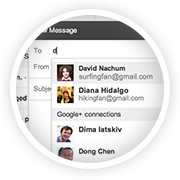
If you want to send an email to people who haven't yet exchanged the email addresses with you, then this feature might come in handy. But for this to work, what Gmail does is just suggest your Google+ connections as probably recipients when you type in the first few letters of your intended recipients. For this to work, you need not even add the email addresses to your contacts - it shows up as they are already in your Google+ contacts.


These preferences are handled and changed on your settings page. Read the newsletter I received below for more details.


Gmail update: Reach more people you know
Ever wanted to email someone you know, but haven't yet exchanged email addresses? Starting this week, when you're composing a new email, Gmail will suggest your Google+ connections as recipients, even if you haven't exchanged email addresses yet.
How it works with email addresses
Emailing Google+ connections works a bit differently to protect the privacy of email addresses. Your email address isn't visible to your Google+ connections until you send them an email, and their email addresses are not visible to you until they respond.
Receiving email from people outside your circles
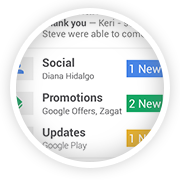
If you receive an email from someone outside your circles, it will be filtered into the Social category of the inbox (if enabled) and only after you respond or add them to your circles, can they start another conversation with you.
How to control who can contact you
You're in control of whether people can reach you with a new setting in Gmail on the desktop. To learn more, check out the Help Center.

The Gmail Team


Octocopters - Amazon's 30 Minute Delivery Robot - Prime Air

"...being at the crossroads of humanity and technology" said Steve Jobs! A well sculpted description of his life's purpose.

Interestingly it doesn't stop with Steve Jobs. It can well be applied to anything that uses technology to make people's lives better. Amazon has come up with a service called Amazon 'air prime' which uses a robot to deliver goods within 30 minutes after the order is placed.


Check this out. Not sure of its other implications, but this invention is a sure shot eye-catcher.

Written by .

Quick Tech Trick # 6: How to edit an outlook email message you've received?

Category: Windows | Productivity

This feature (example shows MS Outlook 2007) allows us to edit an email message which is an already sent one. By nature, it's not editable. However, Microsoft offers a feature through which one may edit it. This feature should not be abused though.


Here's how:

Open the email which has to be edited. Select Message tab > Actions group > Other Actions drop-down > Edit Message.

The keyboard shortcut for the above set of action is: Alt H, X, E.


Written by .


How to keep a watch on your Google AdSense revenue regularly?

Category: Blogging | Utilities

First, ensure you are using Google Chrome. Trust me, it gets better with this browser. Then install the Google Publisher Toolbar, an extension from the Google Web Store.


Now you get the point. Just click on the Google Publisher Toolbar once and it shows you:

  • that day's estimated revenue, 
  • the previous day's earnings, 
  • this month's accumulated earnings and 
  • the previous month's earnings.

It also shows the Top 5 Channels/URL Channels for today, yesterday, this week, this month and last month.


I don't know why it's called as a 'toolbar', but it does the job, well!


Quick Tech Trick # 3: How to use Notepad as a diary or a log or a Journal?

Category: Windows | Productivity

1. Open a blank Windows Notepad (type 'notepad' in the Run command)
2. Type '.LOG' without quotes
3. Save


Bam! You now have mastered the art of creating a Simple Diary! Enjoy.

Written by .


Quick Tech Trick # 1: How to sort and filter only "Unread emails" in Gmail?

Category: Gmail | Productivity


Type "is:unread " in your Gmail search window.


Bam! You now have all your unread emails showing up!  Happy reading!

Written by .

How to keep ‘Explorer’ view as default view in Windows XP? (Five easy steps with screenshots)


How often you have thought of maintaining a particular style of look and feel of your computer screen, no matter what enhancements are introduced in the market?

Most of us still like to use (and stick to) Microsoft Windows XP.  


And sometimes we get used to using the 'Explorer' view in our Windows XP machine, which shows the folder tree structure instead of the common tasks. But this is not the default option always. 

If you would like to keep this setting as the default option, just follow the simple steps given here:


  1. Open My Computer, My Documents or any Folder.
  2. Click on Tools menu and then click on Folder Options.
  3. Now, click on [NONE] Folder and click on Advanced button. The Edit File Type window opens.
  4. In this window, under Actions list, select ‘explore’ and hit on ‘Set Default’.
  5. Click on ‘OK’ in this window and also on Folder Options window. Hereafter, whenever you open any folder, it opens up in Explorer view.

Repeat the above steps to set the default view. You just have to click on ‘open’ instead of ‘explore’ under Actions menu to revert to default view.


Written by .