Showing posts with label Google. Show all posts

Best Way To Search Fresh Recent Results In Google

If you want to search the internet using Google and if you want search results that are only recent ones - probably a week or month old, then follow this trick while searching in Google.


This trick is especially useful when using Google Maps and Products to search more relevant and also recent updates.

After the search query is typed in the Google search bar, select the Search Tools drop-down option.


Then select Any Time drop down


Now select the time frame you need to filter the search results.


There is also a 'Custom Range' feature available for you to select from. Pretty neat!


Know any other neat tricks in Google search that you think the World may not be aware of? Please do input your comments below.


Best website to learn the summary of every Matt Cutts video on SEO out there

Matt Cutts, (bio) the head of the web spam team at Google has provided a number of videos talking about SEO, blogging best practices and answering questions from bloggers worldwide. His videos are not only informative but are very short and precise.


That being said, what if you still want to lessen the time spent - instead of watching all his videos how would you feel if there is a Summarized Solution given for every question asked in the Google Webmaster videos series? Awesome, right? That's how even I felt when I came across this website which is aptly named as:-

The Short Cutts. The Short Answers to every Matt Cutts Video


This website provides a simple, sweet, precise answer to all the questions asked to Matt Cutts by humans worldwide. The website is a simple one which you'll definitely find useful, if you are a regular follower of the Google Webmaster Videos YouTube Channel.


The website also offers four guides as freely downloadable after we sign up on their contact form page. Though, I wouldn't sign up unless I really want to read their guides - they are useful but I chose I would pass them for the time-being and revisit them later.

One funny feature about the website is that they provide different colored T-Shirt pictures which when clicked filters the webmaster videos that has Matt Cutts wearing that colored T-Shirt which was clicked!


Give it a try and please let me know your comments below if you found this useful.

Written by Arun Sarathy

10 Great Videos To Supercharge Your Blog Or Website - Google Webmaster Videos

These videos are a part of the Google Webmaster series posted on YouTube. I have collected them and posted here in a single place so anyone who wants to learn a few basics and few advanced topics on SEO and Blogging can be benefited.


These are given in no specific order. However, the #1 rank is aptly given, at least IMHO.

10. 5 Common Mistakes in SEO (and 6 good ideas!)

9. What are some effective techniques for building links?

8. How can I make sure that Google knows my content is original?

7. What are the top 3-5 SEO areas where webmasters make the most mistakes?

6. What is the best way to check your own site for keyword rankings?

5. How important is it to have keywords in a domain name?

4. What are some examples of SEO misinformation?

3. How would a non-optimized site outrank a site which has done SEO?

2. SEO for startups in under 10 minutes

1. How Search Works


This is definitely not a complete list. These are just the 10 videos that I felt truly great. These helped me learn the basics of SEO and blogging. For more videos like these - subscribe to Google Webmasters Group.


Related: Get the summary of all Matt Cutts videos

--------------------------------------------
Posted by +Arun Sarathy

You Ought To Know This Little Secret Within Google Chrome Omnibox

Google Chrome – the World's widely used browser has a tiny little secret.


Searching using the Omnibox – 

which is searching using address bar is the same as searching directly on Google.com. However, if you are not a Google searcher by default, then you might be searching using AOL, Yahoo or Bing – within Google Chrome.


In Internet Explorer you attain this by changing your default search provided in the Settings. Google Chrome too allows to change your default Search Engine settings on their Settings page.


Better still, Google knows that already and has made it even simpler for you - that's exactly the little secret I was talking about. Here's how:


How to search Yahoo, Bing, AOL, YouTube or Ask in Google Chrome:

In Google Chrome if you want to search using Bing, Yahoo, but still don't want to change your default search provider, all you have to do is just this.

To search using AOL search engine within Google Chrome, just prefix the letter 'a' before you type your search text in the Google Chrome's Omnibox. This also applies for searching in Ask.


To search using Bing search engine within Google Chrome, just prefix the letter 'b' before you type your search text in the Google Chrome's Omnibox.


To search using Yahoo search engine within Google Chrome, just prefix the letter 'y' before you type your search text in the Google Chrome's Omnibox. This also applies for searching in YouTube.


Related: Search using the address bar.


Additionally, after you try the above tricks, if you'd watched closely, you would have noticed that when you prefix 'a' to search using AOL, Google not only provides AOL as one of the suggestions in their Google Autocomplete feature – but also provides options to search websites from your web browser history.

For example in my screenshot above you will notice Autocomplete suggestion to search my text within Automattic website too.

Did you like this Google Chrome Omnibox trick?

If you know of any other Google Chrome secret trick, please write them in your comments below:

--------------------------------------------
Written by +Arun Sarathy

How to create a Google Account without a Gmail address

Google Products can be used without having to create a Google account. For E.g. You can search on Google, watch videos on YouTube without signing in to a Google account.  However, if you want to get in to the sharing arena and interact with people you will need a Google account.


One key point to note here is that Google account can be created without having to create a Gmail address. 

The Google account helps you do lot many things – search, share, chat, hangout, collaborate, create, connect, converse, schedule meetings, backup files, blog, etc. – all these without having to create a Gmail account.


If you notice, the URL itself says "Sign Up Without Gmail".


Below is the screen shot from both the screens to give you an idea of how it looks like:


If, after creating a Gmail address, you still prefer to use your existing email address for your Google account, you can do so by cancelling your Gmail address. However, deleting your address will not free up the username you created. Even after deleting the Gmail address, you won't be able to use the same username again. (myusername@gmail.com)

Here's how:

Sign in to your Google account at accounts.google.com > Click on Data Tools > Click on Delete Products > Click Remove Gmail Permanently.


Be very cautious before you delete your Gmail account. Within a few weeks' time the Gmail account will not be recoverable - how much ever Google helps you in recovery process - a maximum of only the username can be recovered.


Posted by +Arun Sarathy

How To Block Ads (in your blog) From Specific Websites - Google AdSense Trick

Blocking certain ads from displaying on your website will not only help in avoiding those ads on your website, but will also ultimately help in increasing your income. The reason is that not all ads are interest based. Some ads show up as back up when Google cannot find relevant keywords in your blog post. That's when some common ads are shown instead of relevant ones.


The maximum number of ads that can be blocked per one AdSense account is 500. This can be at the site level or the account level - either ways, the upper limit is 500.

How to block:

Go to AdSense account > Allow & block ads section.

On the left side - under the Content menu - select your site. On the right side, under Advertiser URLs, type in the URL that you want to block. Hit on Block URLs. This will ensure that ads from that particular advertiser will not appear on that site which you selected.

If you want to block ads at the account level - which means that ads from that URL will not appear on any of your sites within AdSense account - select All my sites under the Content menu on the left side and simply enter the URLs under your Advertiser URLs. This will ensure the ads from that blocked URL will not appear on any of the sites included in your AdSense account.


Remember, do not click directly on the ads to find out the URLs. Instead of creating such invalid clicks which is against AdSense Program Policies, you can just find out by using Google Publisher Toolbar - which is available from the Chrome Extensions page here.

3 Proven Methods To Increase Your AdSense Income

This post also talks about how to add Google Link Units.

Google AdSense provides us with different kinds of ad dimensions which can be used to place our ad units on our blogs and websites. Among these, Google recommends some which have proved to perform well in terms of generating more clicks and ultimately the cash.


Let's see the top 3 of those best proven methods that will help in increasing your income from Google Ads.


# 1. Follow Google's suggestions


Google AdSense is a proven way to earn your income through blogging. There are many bloggers out there who make decent income out of it. Not everyone has started with a blog and started making money overnight. It takes time, patience and careful study of what works best for one's blog.


When creating ad units using your Google AdSense account, make note of Google's suggestions within the Ad Size drop-down.


Do this with caution because some sizes do not display all ad types. Wider sizes tend to perform better. Google's recommendations are given within the drop-down. Whenever you add units, try to use these - and check the difference when you don't.

Google ad recommendations


# 2. Make use of Google Link Units

Within the same drop-down discussed in point # 1 above, scroll down towards the end to find 'Link Units - Related Topics List'. This is often overlooked when adding ad units in a blog page by a newbie blogger. Google allows up to three link units on a page, in addition to the three standard ad units and two search boxes. So make the best use of it - beware though, too much use of these also reduces your blog's quality.


Just select a link unit, give a suitable name so the advertisers can relate to it - add relevant custom channels, choose the ad style and get its code. You can then place that code within your blog posts to get related text ad links within your post. Read this article if you want to know how to add code within your posts


# 3. Block some URLs to improve income

This may sound contradicting. But it's true. Sometimes you may find unrelated ads on your blog page. If you find them creeping in to your site often, you may consider blocking such ads - especially if you find any gaming related ads or the common Facebook ads. The reasons being gaming ads are not so often clicked on - they are around the web since ages, so nobody is that much interested. Moreover, everyone today has a Facebook account.  Chances are that if you are reading this post on your home computer with decent internet connection, I bet you too have a Facebook account (at least you used one and is not currently active on FB). So such ads generate very less income through Google AdSense.

You can block them by going to your 'Allow & Block Ads' section in Google AdSense account and enter the URL of that particular ad which you want to block from appearing. Please, however, do NOT click on the ad to find its URL as that's against AdSense Program Policies. If you want to find out how to find the URL from Ads, you can read my other post here.


Related: How to find the URL from AdSense Ads so as to block them from appearing.


Bonus tip:

If you haven't yet discovered about custom channels and custom ad units, then you are losing out a lot.

Google AdSense > My Ads page enables you to create custom Ad units and thus add related custom channels to it. This ensures you get high paid CPCs and Ad requests and you tend to control the ads rather than let Google decide on which ad shows on your blog. Do give them a try. You can also read my other post here to get some idea on how to add your own ad unit and custom channels.

Related: 5 Best Tips For Success In Blogging - Increase Income, Boost Traffic And More


Written by +Arun Sarathy

5 Best Tips For Success In Blogging - Increase Income, Boost Traffic And More

The following are the best known steps to increase your chances of being successful in your blogging career. These are just plain vanilla practical tips. 

1. Know yourself.

The first and foremost thing is to know what you are good at. An easy way to gauge an understanding of yourself is to observe and catch yourself at frequent times and see what you do more and what you do best. 
The best common factor to these two things will help in finding your niche. 

thekeyponderer.blogspot.com
"Image courtesy of stockimages / FreeDigitalPhotos.net".
You might be good at cooking, painting, writing stories, have good experience in dealing with latest gadgets, programming, or networking. 
Once you know what you are good at, it's like half the ocean is crossed. The remaining is just some dedication, commitment, discipline and consistency.

2. Take action.

Now that you know what comes easily to you – your thoughts in your particular field or niche - put them to paper. Write whatever you can so you can share with the world.

If you see some usefulness to that, chances are very bright that others who share similar interests in some corner of the world also finds it useful.

Blogging world is exactly that platform for you to express this interest. Ultimately, taking action is what will help you get more traffic, income, followers, fans, fanatics, etc.


3. Understand the Technicalities.

Ok, two most important factors for a successful blogging career have been established. But it's of no use if you do not know and understand the other piece of the puzzle - if you want to earn income from your blog.
When I say technicalities it covers SEO – Search Engine Optimization, AdSense Policies, Social Media, Affiliate marketing and all their related technical insights which can be mastered only after working at it for some years, consistently.


If you see Google AdSense as your primary advertising agent, then you ought to know their policies and rules. One main thing to know is that Google AdSense allows only a maximum of three ad units per page. Your website might have a lot of pages in it, but a single page can contain only three ad units or less.

What is an Ad Unit?


We'll understand this better with an example. Let's say you want to order 3 T-shirts for your three cousins. They all come in different sizes. One is Large, the other XXL and the other Small.  Ad Units are something like these t shirts. You can add Ad Units in many different sizes and dimensions. It could be 728x90, 300x250, etc. Additionally, Google AdSense has also started supporting custom sizes and responsive ad units which is in beta as on today.  These will be seen by advertisers and they will offer to place their ads in these unit slots. Thus, Ad Units are like plates used to serve ads. But to do that advertisers should also understand what content can go in to your ad units.


This is where your Custom Channels comes in to picture and helps tremendously. 

What are Custom Channels?

Custom channels tell advertisers what kind of ads can be placed in an ad unit. As a publisher it's your work to create these channels so the advertisers can find your placements and offer ads through Google AdSense.


As you can see, both - ad units and custom channels go hand-in-hand, in tandem with each other. Google allows a maximum of 500 Custom Channels that can be created.

4. Insights. Learn from others.

What I am going to tell you now took me a very long time to understand and to put to practice. But this was not just an idea – it was like a revelation to me when it occurred. The funniest thing is that I always knew this and it was always in front of me. But only after I spent time and put this in to practice did I understand the grandeur of life itself – that unless we take action on our insights or knowledge – change, for the better, will not happen!

Google AdSense gives us extensive guidance and information on how all these things are put together and in short, how it all works!

Ad Units, as said before, comes in various sizes and dimensions. Some of the ad units will fare better than the others – you can check it in your Google AdSense account, under 'Performance reports'. If you know about CPC – cost per click, some ad units get more CPC and also more Ad requests.


If you see the above table from the Performance reports section, it highlights the top 3 'ad requests' from advertisers who are bidding, the highest clicks that a particular ad unit achieved and the top 3 CPCs. If I have to choose the best option for my website, I would take all these three factors in to consideration and then decide appropriately. It differs from person to person and blog to blog. There is no finite answer.

Since Google AdSense offers a maximum of three ad units per webpage, some people do that big mistake of keeping three AdSense widgets placed in three different pages within the blog layout page and just start expecting it to fetch more clicks. What this does is that all three units are placed in a static position on ALL your pages in the blog. This means with time all your visitors would create a sense of ad blindness and will start to ignore the ads in your blog or website. But instead of placing three AdSense widgets in a standard position, just keep one at a standard position using your blogger layout screen. But let that one be with high CPC and high ad requests.

For the remaining two ad units, we will deal with it little differently - add them within your blog posts. After your ad units are created, go to your 'My Ads' screen in the Google AdSense account and customize your ad unit with a good descriptive name, a size that performs well (you can get this info too from Google AdSense account under 'Performance reports'), add some back up ads, and stitch some custom channels in to your ad unit. Remember, all your custom channels should be checked as Targetable to the advertisers.

Choose your ad styles wisely: this is where you can determine the look and feel of your ads, especially the text ads. You can customize this by selecting styles that match your blog design, so that the ads blend well with the blog content. Sometimes, this works the other way round as well. Your Ad can stand out, grabbing attention with different contrasting colors when compared to your blog content. Just see what works well for your blog or website. With time you can definitely get a grip on this.

To summarize this particular point, it's only wise to visit other niche websites and learn from them periodically. Learning never stops. There's always something new.

5. Adding ad units within posts.

I mentioned in point # 4 above about placing ads within posts. You might think that this is a 'check box' selection within the blogger layout screen. Yes, that's one option. But what I am going to show now is done manually.

Go to your Google AdSense account, my ads section. You will see all your active ad units there. You will also see an option called 'Get code' beneath the ad unit. Click and copy the code to your clipboard.

Now head to your post – preferably that has large traffic magnetism among your other posts. Edit the post and go to its HTML view. Find a location where you think is fine – doesn't spoil your reader's experience at the same time it grabs the reader's attention gently – of course if you've done all the above steps correctly, you might also get a related and relevant ad. Paste the code there. Update post and exit.

Check your post and you will find that the ads start showing up within the post. You can also use some HTML attributes like 'float: right;' so your ads don't push your blog content down and instead shows up on the side along with you content.

6. Bonus tip

Google Link units are mostly forgotten by new bloggers. And they are never used until it dawns on them how useful they are! These are just plain text ad links that help in getting more clicks. These can be placed near your blog content's tags, categories, menu tabs and related posts area to name a few.


Conclusion

With a mix of a good sized ad unit that has large number of ad requests and CPC, with a creative and promising custom channel, and placing the ad unit within posts where required – you will start seeing a bump in the graph of your AdSense income and you'll only see it increasing day by day, provided you are also consistent in writing quality content, checking your CPC and ad requests periodically. This happened to me.


Written by +Arun Sarathy

Top Reasons - How Does Google Make So Much Money While Being Free

There are so many reports floating online showing how Google gets its revenue. But this article can be labeled as a simple layman's article to help understand how all this works.

google making money
We all know that Google search, the most prominent of Google Products is completely free. So how does Google make so much money? Of course, it has other products like Gmail, Google Maps, Google News, Google Earth, Google Drive, but all these are free too. This is where the smartness of Google comes in to play.

A tactic which was adopted early in the scene by Google – after their initial Venture Capitalists played that pivotal role in making Google launch their search engine brain to work. These services offered by Google take immense investments and time. But these are all offered for free to majority of its users (others being corporate users who pay for certain upgrades and services). These also demand extensive resources, space and bandwidth. However, this makes the user spend more time on Google, clicking on ads - thus the resources, money and time well spent on part of Google.
Targeted Advertising

What is it that makes this giant become an even bigger one with every passing day?
Advertising. Yes. Advertising is what makes Google make so much money. It's the revenue from ads which is the highest among Google's entire revenue stream.
Regular Updates

So what do they do to make this magic happen?
They continue to drive constant innovation and new techniques. Frequent and regular updates are made to the way Google displays its ads in Google searches made by billions of people worldwide – and all those are mostly done as a silent update, never known visibly to the end user who is making a simple Google Search using their computer or in a Smartphone.

Clutter-free design with non-obtrusive approach

Google strives to help people find ads which are relevant and useful. They do this by separating ads from the regular Google search results. This way the regular or 'organic' searches are displayed without getting mixed up with 'paid' links which are the ads.
This is the revolutionary business model created by Google which the other early players in the Search Engine arena failed to accomplish. If there is one word that can summarize Google's combined search and ad aesthetics – it's 'Relevance'. Being relevant is what helps Google stand out from the other players.

Smartness

Taking this study to its next level, one must understand that Google's Search Engine is still the prominent and ranks at the top in fetching substantial revenues for Google. And searching is all about words. In Google's terminology, these are called as 'keywords'.


The above Infographic depicts clearly the top keywords that Google, bidders and publishers use.

It all works seamlessly in a virtually perfect world:
Advertisers use Google AdWords to pay for their placement of ads.
Publishers offer ad space in their blogs and websites using Google AdSense.
Users click on the ads – advertisers pay Google and the Publishers – only when they are clicked.

Conclusion

There is a lot to learn from the Google's Business Model. There are even hundreds of books on Google and its approach. No wonder there is a large fan base for what Google does and there are people who follow it religiously for what it does and stands.  It's the simplicity that helped Google skyrocket its business model in its early days. Some even say that the founders still prefer to keep the home page simple and they insist that the words on the home page do not exceed 28 words.(Source).

Since all the key players in the advertising business get benefited, this system would run effectively as long as Google runs its business with all the key players in mind while making any changes to its business model.

To share your thoughts, please write your comments below.

Posted by 

Advertisement: Related Books:


Google 2014 Republic Day Doodle - Nice logo

Wish everyone a very happy Republic Day!

Today India celebrates her 65th Republic Day. Google posted a nice colorful doodle marking the Indian Republic Day. The logo has a tri-color effect with bikers dressed in green, white and saffron, riding as if in a parade.


65th Republic day for India. Google did a good job of honoring it.

65th Republic Day


Posted by 

Gmail update: Reach more people you know

Here is a cool update from the Gmail team early this year (2014).

What this update means to you?
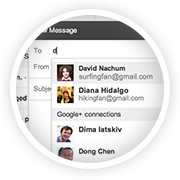
If you want to send an email to people who haven't yet exchanged the email addresses with you, then this feature might come in handy. But for this to work, what Gmail does is just suggest your Google+ connections as probably recipients when you type in the first few letters of your intended recipients. For this to work, you need not even add the email addresses to your contacts - it shows up as they are already in your Google+ contacts.


These preferences are handled and changed on your settings page. Read the newsletter I received below for more details.


Gmail update: Reach more people you know
Ever wanted to email someone you know, but haven't yet exchanged email addresses? Starting this week, when you're composing a new email, Gmail will suggest your Google+ connections as recipients, even if you haven't exchanged email addresses yet.
How it works with email addresses
Emailing Google+ connections works a bit differently to protect the privacy of email addresses. Your email address isn't visible to your Google+ connections until you send them an email, and their email addresses are not visible to you until they respond.
Receiving email from people outside your circles
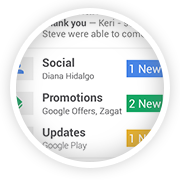
If you receive an email from someone outside your circles, it will be filtered into the Social category of the inbox (if enabled) and only after you respond or add them to your circles, can they start another conversation with you.
How to control who can contact you
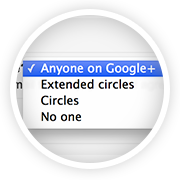
You're in control of whether people can reach you with a new setting in Gmail on the desktop. To learn more, check out the Help Center.

The Gmail Team


How to keep a watch on your Google AdSense revenue regularly?

Category: Blogging | Utilities

First, ensure you are using Google Chrome. Trust me, it gets better with this browser. Then install the Google Publisher Toolbar, an extension from the Google Web Store.


Now you get the point. Just click on the Google Publisher Toolbar once and it shows you:

  • that day's estimated revenue, 
  • the previous day's earnings, 
  • this month's accumulated earnings and 
  • the previous month's earnings.

It also shows the Top 5 Channels/URL Channels for today, yesterday, this week, this month and last month.


I don't know why it's called as a 'toolbar', but it does the job, well!


Quick Tech Trick # 1: How to sort and filter only "Unread emails" in Gmail?

Category: Gmail | Productivity


Type "is:unread " in your Gmail search window.


Bam! You now have all your unread emails showing up!  Happy reading!

Written by .

Quick Tech Trick # 5: How to give a URL in blog comments - Wordpress, Blogger

Category: Blogging | Commenting

How do you provide a URL in the comments section of a blog?

Wordpress or Blogger - be it anywhere. You might want to provide a URL without providing the visible "https" section.
For eg. a hyperlink like this one - How to sort and filter emails in Gmail by size and more.


Here's how:

Write the other parts of your comment as usual. And whenever you want to provide a link to a word or a sentence, just use the <a> tag with the 'href' attribute as given in this format:

<a href="http://thekeyponderer.blogspot.com/">The Key Ponderer </a> 

That's it! Now you'll see the text with your URL in it.


Written by .

Warriors Needed To Save Mother Earth

Mother Earth is ever loving, kind and always forgiving. Of course if one doesn't attribute the earthquakes, tsunamis and floods as Nature's revenge on its inhabitants - flora, fauna, humans, animals, etc.

Time and again some non profit organizations, individuals raise their voices, mark their footprints for good - to stop killing north pole animals, to save tigers, to conserve water, to stop using the big old filament bulbs, to commute using public transport whenever possible, etc. One article that caught the attention is from Google's initiative - Google Green.


Click below to see what Google has to say regarding it's initiative. It's worth it.


Written by .

How does my blog look in all browsers worldwide – how to check compatibility?

It’s not just Google Chrome, Internet Explorer, Mozilla Firefox, Safari and Opera. There are many more web browsers used by people worldwide in their computers, tablets and Smart phones. In addition there are different versions of the same browsers and different Operating Systems. 


So how does my blog or website look like in all these permutations and combinations?


It’s the wish of every blogger and website builder to know an answer to this important question. Let’s find out! The reason is that if their blog didn't look correct in any of these, they might lose a good chunk of visitors.

Not surprisingly, there is an easy solution to this problem.

A service online provides a feature which captures screenshots of your blog or website in various platforms and shows them all in one screen for you.

The two most important advantages of using this service are:
  1. It can help identify visual differences, plug-in problems of your site on all web browsers. 
  2. Your website’s appearance as it is – and to use that screenshot for studying and enhancing user experience.


Bonus advantage: It also provides the page loading time in most cases.

Who provides this service?

1. One that immediately comes to my mind is browsershots.org. They have a big list of permutations and combinations of OS platforms and Web browsers. You might get around 150+ screenshots once the blog is tested.

2. The second one is www.browserstack.com.  This is also equally good in terms of checking your blog or website on many platforms.

3. Another one that is available is www.browsershots.at.

Though all the above given services are FREE, one may have to wait in the queue as there is a lot of demand. They also let us register and/or pay for the service to get precedence.

Thus, this helps us in ensuring our visitors get the view that we intended to show when we kept our best foot forward with our blog or website. 

Good luck in enhancing your user experience!

Written by .

Changes in Google's AdSense new homepage

Google has updated its AdSense homepage. The newer look is neat and offers key insights and analysis right on the initial view of Google AdSense homepage as soon as one logs in, avoiding the clutter and unwanted information. 
You can still revert back to the old homepage layout after trying out the new homepage. 

Let's now walk through the key changes made in the new look.

Look and Feel

 The number of tabs has remained the same though:


However, what you see on the initial view of your Google AdSense homepage differs a bit more than the older look. A guided tour shows us the key changes when we adopt to use the new look.

Mainly the options available under the “Home” tab have taken a back seat in the new look. In fact, all the options in the left side list under the “Home” tab are now placed under various other places. We will now look their placements in the new look:

Messages and Policy Violations are now placed under the ‘Status’ screen given inside the ‘Gear icon’ drop down menu on the top right corner.


Google AdSense - Previous Look


Gear Icon
Gear Icon > Status Page


Payments and Account Settings are now placed under Settings page given inside the ‘Gear icon’ drop down menu.

 Alternatively, Payments can also be viewed within the Home page by clicking on ‘View Payments’.

It’s the Resources page that’s been dropped in the new look.

Here’s what AdSense’s product manager, Matt Goodridge has to say about the new look:


The new Insights stream on the right-hand side of the page provides personalized recommendations for your account, such as monetization opportunities and tips to enhance user experience, which can be put into action in just a few clicks.

Your key account stats for today are quick and easy to view and now provide comparison data such as earnings so far this month versus the same period last month.

The new Performance Today section gives you quick access to more detailed information like your countries and platforms reports, without requiring additional clicks.

Your Scorecard will continue to be prominent on your homepage, providing quick benchmarking information on how your site is performing relative to the sites of other AdSense publishers.

  
You can read more about it from here: