Showing posts with label how to. Show all posts

FREE eBook eReader software - An App for iPod Touch/ iPhone Compatible with iOS version 4.2

Post last updated: October 2014. Updated Freading 1.0 link below. Freading 2.1 doesn't support iOS 4.2 compatible devices.

"The most technologically efficient machine that man has ever invented is the book." - Northrop Frye.


You are reading this because you are a good reader and you want your old iPod or iPhone to be able to carry your best friend - the ebook ereader. But alas, you know that the iBooks app requires a minimum of iOS 7.0 whereas your iPod Touch can no longer travel the iOS road beyond its 4.2.1 limit.

Here comes our rescue partner, when I was exactly at that crossroads. Left alone to ponder over this issue with some apps that promise to deliver but fail what I really wanted - to just read books. Simple. That's it.

Finding your perfect eReader app for free for your old iOS device with 4.2.1 as the last version has become easier now.

EDIT: Freading, as on October 2014 is upgraded to 2.1 in the Apple App Store and is no longer compatible with iOS 4.2 devices. Hence, I am providing my archived version (Freading 1.0) that I use in my iPod Touch with iOS 4.2 version.

You can download the older version of Freading from here.


The app's name is Freading - Library Ideas, LLC this app comes to our rescue. It does a simple job - let's you read, peacefully. 

Supports ePub, PDF - the two of most used ebook formats. Best of all, this app comes for free!

This app is available from the iTunes Appstore, with the base version as iOS 4.0. Compatible with iPhone, iPad and iPod Touch.

Let me know your thoughts and other app suggestions. Please leave your comments below.

 Download Freading 1.0  

Quick Tech Trick # 8: How To Open Microsoft Command Prompt Window In Any Folder

If you've have tried navigating to a specific folder using Windows Command Prompt Screen by manually typing the code in that little black window screen, you will agree with me that even pros sometimes have to do a trial and error to get it correct.


That's when this surprise little trick will come in handy:

Whenever you want to open the command window in a particular location, just do a 'shift + right click' on a blank space within that folder and you'll find a new context menu entry there – "Open Command Window Here".

If you are an avid command prompt user, you will thank this trick (of course if you didn't know about this earlier).


Written by Arun Sarathy


Best Way To Search Fresh Recent Results In Google

If you want to search the internet using Google and if you want search results that are only recent ones - probably a week or month old, then follow this trick while searching in Google.


This trick is especially useful when using Google Maps and Products to search more relevant and also recent updates.

After the search query is typed in the Google search bar, select the Search Tools drop-down option.


Then select Any Time drop down


Now select the time frame you need to filter the search results.


There is also a 'Custom Range' feature available for you to select from. Pretty neat!


Know any other neat tricks in Google search that you think the World may not be aware of? Please do input your comments below.


3 Top Ways To Read Online Effectively By Tackling Distractions

Earlier, reading was done using the 'hard bound' or 'Paper back' books, before the advent of computers. Then, the distractions were little less - as there were no popup advertising inside a book, or a mail notification showing up in the corner of the page nor a 'related' content showing up at the end of the page before turning to the next one.


However, these are some of the common distractions faced by every one of us while a serious online reading is taking place - a silent conversation between our eyes and the computer screen that shows the content. People like us get easily distracted in this modern age - at the same time there are so many online bookstores with plethora of online textbooks and educational websites.


Here are some practical tips that will help you overcome the dreaded distractions while reading online:

  1. Use Readability plugin for browsers (Google Chrome and Mozilla Firefox) to not to get distracted. This extension is similar to the Reader feature within Apple's Safari browser. What this does is provide you with a clutter-free version of the same article.
  2. If you find any link that is part of the original article you are reading, simply do not go about reading every other hyperlink provided. Right click on the link and open it in new tab or new window to read it later - after finishing the currently reading article. (You can also 'scroll click' or 'ctrl click' on the link to open it in new tab). This way you can finish reading the original article you opened in the first place.
  3. If nothing works, or you find many articles and webpages to read for the entire day - use an online bookmarking tool to bookmark your site so you can read it from any part of the world. You can also use a free app in Chrome called Quick Note to save texts and links to read later - this is a note taking app which can be used in this way also. This way you can revisit less important ones later. I use this app often. Best of most of the other note taking apps available for Google Chrome.
These are the top 3 best practices I follow to have a pleasant reading experience without getting distracted much - or by tackling the distractions in a technologically productive way.


Do you have any other tip to have a disturbance free reading experience? What do you do to read articles online without disturbances? Please share your comments below.

Written by Arun Sarathy

How to clear your clipboard using Command Prompt

Admit it - sometimes you wish Windows offered an easy way to do this - clearing the clipboard after copying a piece of text!


Well, here is a way to do that using a tiny piece of code. Just copy the code given below and follow the steps given to create your own small software to clear your clipboard.


C:\Windows\System32\cmd.exe /c "echo off | clip"

Steps:
  1. Right click on the desktop.
  2. Select New > Shortcut
  3. Paste the code copied above. Save and exit.


You now have a shortcut which when double clicked clears your clipboard in a whoosh!!

Written by Arun Sarathy


How to charge your iPod or iPad or iPhone with USB using your computer

Life without technology is only for few and for the rest of us, a little disruption in it causes havoc!


Being in the technology driven world, most of us have atleast one iPod (old or new doesn't matter), or an iPhone or iPad. One of these iProducts might be lying at our home - at least for most of us who are Apple fans. That being said, there will be times when we do not want to always plug it in to the wall socket to charge the iDevice. But when we sync or transfer content to and from an iDevice to our Windows computer how better the world would be if that time is also used to charge our iDevice!

That's where our protagonist of this story enters our world - ASUS Ai charger


What this tiny software does is simple:- 
  • Install the software available from their website here.
  • Just connect your iDevice.
  • It starts charging.


Yes! That was indeed silly to list them down - however that's all it is to it to charge your iDevice using your Windows computer. 

Note: for Mac, it automatically charges - without any need of a third party software installation, as you might already know.

Know of any other software that does the job better than ASUS Ai Charger? Please let us know by writing in your comments below.


Written by Arun Sarathy

Best website to learn the summary of every Matt Cutts video on SEO out there

Matt Cutts, (bio) the head of the web spam team at Google has provided a number of videos talking about SEO, blogging best practices and answering questions from bloggers worldwide. His videos are not only informative but are very short and precise.


That being said, what if you still want to lessen the time spent - instead of watching all his videos how would you feel if there is a Summarized Solution given for every question asked in the Google Webmaster videos series? Awesome, right? That's how even I felt when I came across this website which is aptly named as:-

The Short Cutts. The Short Answers to every Matt Cutts Video


This website provides a simple, sweet, precise answer to all the questions asked to Matt Cutts by humans worldwide. The website is a simple one which you'll definitely find useful, if you are a regular follower of the Google Webmaster Videos YouTube Channel.


The website also offers four guides as freely downloadable after we sign up on their contact form page. Though, I wouldn't sign up unless I really want to read their guides - they are useful but I chose I would pass them for the time-being and revisit them later.

One funny feature about the website is that they provide different colored T-Shirt pictures which when clicked filters the webmaster videos that has Matt Cutts wearing that colored T-Shirt which was clicked!


Give it a try and please let me know your comments below if you found this useful.

Written by Arun Sarathy

How to map an offline folder like your Network Drive within My Computer In Windows 7

Let's say you have a frequently used folder in your Windows PC or Laptop which you open frequently.
There are 3 traditional options which I've used so far to get to my frequently used folders:

1. First I go to my folder – right click on it – and 'Send To Desktop (Create Shortcut)'. Or
2. I copy the full path of my folder, keep it in 'Run' utility command box and open it from there. Or
3. Add it to my favorite folders inside an Explorer window.


Though all of the above works equally well, here is a geeky way to get this job done, using the Command Prompt Window. Using this trick you can assign an unused drive letter to your frequently used folder, making it an entry within your 'My Computer'. I guess this stays inside My Computer until you logoff or shut down your computer.


Example:

Let's say you want to have a folder called 'Source' within your C drive, assigned to a drive letter called 'Q'.
Open Command Prompt Window. (Type CMD in Run command window) (Win key + R to open your Run command) and type the following command:

SUBST Q: "C:\SOURCE"


That's it. Now you will have a folder added within My Computer window like this one:

How to remove the drive letter assignment:
If you want to remove that folder from the assigned drive letter then simply type in this command:

SUBST Q:   /D


Hit enter to free your drive letter assignment within My Computer.

Find this tip useful? Please let me know your comments.

Written by 

10 Great Videos To Supercharge Your Blog Or Website - Google Webmaster Videos

These videos are a part of the Google Webmaster series posted on YouTube. I have collected them and posted here in a single place so anyone who wants to learn a few basics and few advanced topics on SEO and Blogging can be benefited.


These are given in no specific order. However, the #1 rank is aptly given, at least IMHO.

10. 5 Common Mistakes in SEO (and 6 good ideas!)

9. What are some effective techniques for building links?

8. How can I make sure that Google knows my content is original?

7. What are the top 3-5 SEO areas where webmasters make the most mistakes?

6. What is the best way to check your own site for keyword rankings?

5. How important is it to have keywords in a domain name?

4. What are some examples of SEO misinformation?

3. How would a non-optimized site outrank a site which has done SEO?

2. SEO for startups in under 10 minutes

1. How Search Works


This is definitely not a complete list. These are just the 10 videos that I felt truly great. These helped me learn the basics of SEO and blogging. For more videos like these - subscribe to Google Webmasters Group.


Related: Get the summary of all Matt Cutts videos

--------------------------------------------
Posted by +Arun Sarathy

How to keep the paragraph settings as default in Microsoft Word

When typing in a word document you may notice that by default the line spacing is either 1.5 lines or 2 which is quite irritating while editing a normal, personal word document - nothing official.


Word line spacing defaults - thekeyponderer.blogspot.com


When we navigate to the Home > Paragraph > Spacing section - you can see that the 'After' field is 10pt by default. You will have to change it to '0' (zero) so the spacing is minimal. But this setting has to be made everytime.


So how to make this setting with zero line spacing as default?


In the same window, there is button that reads 'Default...'. Just click on it to make your current changed settings as default. That's it!

To change this default to normal or any other setting - simply make your changes and click on 'Default...' button again to keep the new settings as your default.

Note that this change only works for the current document. If you open a new document, then the changed settings won't apply.

Please do write your comments below if you liked this post. Thank you!

Written by 

Facebook Keyboard Shortcuts - Most Essential Cheat Sheet For Facebook Addicts

Facebook as a sharing platform has accomplished its goal. No doubt. Its niche is constantly evolving with new updates from every corner of the world. Overnight, any individual over 13 years of age and any business can create a tiny website for themselves by way of a profile or a page, respectively.

facebook keyboard shortcuts - thekeyponderer.blogspot.com

Facebook in its entirety being useful or not, is not the case of concern. But few keyboard shortcuts are certainly useful to save some time when using Facebook.
This is really funny here because there are some organizations that scream at their employees of low productivity and wasting time in Facebook. And here we are talking about saving time while using Facebook – however funny it might be, it certainly is true when you use keyboard shortcuts to get some things done within facebook.

With these keyboard shortcuts you can essentially speed up your pace at which you update your status, timelines, profile, check your friend requests, etc.

Keyboard and Browser types

If the computer you use doesn't have a numerical keyboard – a separate num keypad, then the keys you press should be used by hitting the 'shift' key when pressing shortcuts that have numbers in it. When you use Internet Explorer, with every key press, hit the Enter key for shortcut to work. It's that simple! (Pun intended).

Facebook essentials: Keyboard Shortcuts


Facebook keyboard shortcuts thekeyponderer.blogspot.com
Source: Social bakers


Have any questions, thoughts or comments to share? Please express them below in the comments box. 

Written by 


Advertisement: Related books


Access Keys - Keyboard Shortcuts for Facebook Users with Disabilities

Facebook, since its founding on February 4, 2004 has grown to an extent even its founder has not dreamed of when it was started. Today any person can create their own Facebook profile for free, only catch being aged 13 or more.


Since Facebook has earned so many followers from all age groups, genders, nationalities, diversification, people from all walks of life should have access to it - regardless of their differences. In facebook's noteworthy addition - it has added accessibility features for people with disabilities.

Keyboard shortcuts for people with disabilities - thekeyponderer.blogspot.com


Variations - intended recipients

For people with disabilities, Facebook has added options to navigate it with keyboard shortcuts. This works with any type - PC wireless keyboards, mac wireless keyboards, or any general desktop ergonomic keyboards like the Microsoft Wireless Keyboard 3000. However, to make the best use of this article, one should definitely know how to control the computer without a mouse using the computer arrow keys in general. 

For other general keyboard shortcuts, read this post –

Known as Access keys, these are for keyboard-only users. The shortcuts provided by facebook are given as browser-specific for all major browsers like Google Chrome, Mozilla Firefox, Apple's Safari and Microsoft's Internet Explorer.

The following are the access keys (keyboard shortcuts):


  • Internet Explorer for PC: Alt + #, then Enter
  • Firefox for PC: Shift + Alt + #
  • Safari for Mac: Ctrl + Opt + #
  • Firefox for Mac: Ctrl + Opt + #
  • Chrome for Mac: Ctrl + Opt + #
  • Chrome for PC: Alt + # 

Access Keys

  • 0 - Help
  • 1 - Home
  • 2 - Timeline
  • 3 - Friends
  • 4 - Inbox
  • 5 – Notifications
  • 6 – Account Settings
  • 7 - Privacy
  • 8 - About
  • 9 - Terms
  • m - New Message 

Keyboard Shortcuts

  • c - Comment when on a story in News Feed
  • j and k - Scroll between News Feed stories
  • l - like or unlike a selected story
  • q - search for a friend to chat with
  • p - Focus on the text box when making a post
  • / - Search 

Web Messenger

  • CTRL + g - Search conversations
  • CTRL + q - Show/hide keyboard shortcuts
  • CTRL + Delete - Archive/unarchive conversation
  • CTRL + j - Mark as spam
  • CTRL + c - Start a new message
  • CTRL + i - Go to Inbox
  • CTRL + u - Go to Other

Have any questions, thoughts or comments to share? Please express them below in the comments box. 

Written by 


Advertisement: Related books


Gmail update: Reach more people you know

Here is a cool update from the Gmail team early this year (2014).

What this update means to you?
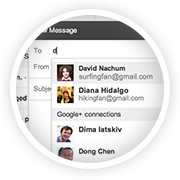
If you want to send an email to people who haven't yet exchanged the email addresses with you, then this feature might come in handy. But for this to work, what Gmail does is just suggest your Google+ connections as probably recipients when you type in the first few letters of your intended recipients. For this to work, you need not even add the email addresses to your contacts - it shows up as they are already in your Google+ contacts.


These preferences are handled and changed on your settings page. Read the newsletter I received below for more details.


Gmail update: Reach more people you know
Ever wanted to email someone you know, but haven't yet exchanged email addresses? Starting this week, when you're composing a new email, Gmail will suggest your Google+ connections as recipients, even if you haven't exchanged email addresses yet.
How it works with email addresses
Emailing Google+ connections works a bit differently to protect the privacy of email addresses. Your email address isn't visible to your Google+ connections until you send them an email, and their email addresses are not visible to you until they respond.
Receiving email from people outside your circles
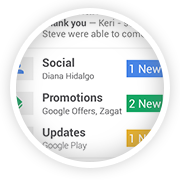
If you receive an email from someone outside your circles, it will be filtered into the Social category of the inbox (if enabled) and only after you respond or add them to your circles, can they start another conversation with you.
How to control who can contact you
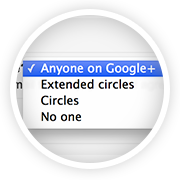
You're in control of whether people can reach you with a new setting in Gmail on the desktop. To learn more, check out the Help Center.

The Gmail Team


Quick Tech Trick # 7: How to show two time zones in your MS Outlook?

Category: Windows | Outlook | Productivity

Some of us have clients or friends outside our home country, who may live in a different time zone. Planning a meeting or an appointment which should suit best for both could be a challenge in such a situation. That's when a feature in Microsoft Outlook's Calendar comes in handy. Just follow these steps:


Tools > Options > Calendar Options > Time Zones > Check the box to show and 'Additional Time Zone'.


(Alternatively, you may also simply right click on the area where time is shown within your Calendar and choose 'Change Time Zone').


Choose your required time zone > hit 'OK'. Now you will have two time zones shown in Outlook!


Posted by 


How to keep a watch on your Google AdSense revenue regularly?

Category: Blogging | Utilities

First, ensure you are using Google Chrome. Trust me, it gets better with this browser. Then install the Google Publisher Toolbar, an extension from the Google Web Store.


Now you get the point. Just click on the Google Publisher Toolbar once and it shows you:

  • that day's estimated revenue, 
  • the previous day's earnings, 
  • this month's accumulated earnings and 
  • the previous month's earnings.

It also shows the Top 5 Channels/URL Channels for today, yesterday, this week, this month and last month.


I don't know why it's called as a 'toolbar', but it does the job, well!


Quick Tech Trick # 3: How to use Notepad as a diary or a log or a Journal?

Category: Windows | Productivity

1. Open a blank Windows Notepad (type 'notepad' in the Run command)
2. Type '.LOG' without quotes
3. Save


Bam! You now have mastered the art of creating a Simple Diary! Enjoy.

Written by .


Quick Tech Trick # 5: How to give a URL in blog comments - Wordpress, Blogger

Category: Blogging | Commenting

How do you provide a URL in the comments section of a blog?

Wordpress or Blogger - be it anywhere. You might want to provide a URL without providing the visible "https" section.
For eg. a hyperlink like this one - How to sort and filter emails in Gmail by size and more.


Here's how:

Write the other parts of your comment as usual. And whenever you want to provide a link to a word or a sentence, just use the <a> tag with the 'href' attribute as given in this format:

<a href="http://thekeyponderer.blogspot.com/">The Key Ponderer </a> 

That's it! Now you'll see the text with your URL in it.


Written by .

How to apply for Voters’ ID card online (India)?

It is every citizen’s responsibility to vote. Even if one is not interested to vote, options are there to go to the ballot and press a button that conveys your no-interest in voting. However, it’s our collectively taken decisions during these elections which decides who would be our leaders. 

Thus, every eligible citizen must vote. How does one register/enroll for this? Keep reading...


Image courtesy of Taoty / freedigitalphotos.net


Which form should I use for my application?


The answer to this question depends on your requirement. Given below are the different form numbers and their purposes.


How do I apply online now?

This is known as e-registration. Various ECI State specific websites have their e-registrations available on their websites. You just have to input some details which would then be translated in that particular State’s local language. Don’t worry, translation is automated with just a click of a button provided along with the e-registration form - named as ‘Translate’.

If you reside in Andhra Pradesh, apply online through 'e-registration' menu given in Andhra Pradesh’s e-registration website.

To know your State specific link check here: http://eci.nic.in/eci_main1/Links.aspx

What are the photo specifications?
The photo should be uploaded using the browse option. Only .jpg images are allowed and image size must be less than 100 KB. Width and height must be 240 X 320.

It’s prudent to remember that mere registering of one’s name for obtaining a voter’s id card and mere possession of a voter’s id card doesn’t guarantee that you are an elector. One must also be included in the Electoral Rolls to vote their choice of Netas. So how do we know our names are included in the Electoral Roll?

How do I know if i am included in an Electoral Roll?
To check if one’s name is included in Electoral roll, we have to check in the list for our respective State - District - Assembly Constituency list using our Voters’ ID Card No. and Name and Address. Using this information, we can find out if our name is included in the Electoral Roll.
This link will help you do just that: http://eci.nic.in/eci_main1/Linkto_electo_search.aspx


What about NRIs?
NRI voters. NRI voters can fill up Form 6A for inclusion of their names. However, one must note that there is no provision for any e-voting, voting by post or email or voting at an Indian Mission or embassy abroad. For more info on NRI electors, please go here http://eci-citizenservices.nic.in/frmForm6ANew.aspx


Bonus Information:
Election Commission of India website http://eci.nic.in/eci/eci.html
Name, email address, phone, fax, intercom numbers and residence phone numbers of different officers are given in this link.


Lodging complaints:

http://eci-citizenservices.nic.in/ also provides a way to lodge your complaints. the site asks if you are a citizen or an officer first, then you’ll have to register there first before lodging a complaint.

Happy Voting!

Written by .

How does my blog look in all browsers worldwide – how to check compatibility?

It’s not just Google Chrome, Internet Explorer, Mozilla Firefox, Safari and Opera. There are many more web browsers used by people worldwide in their computers, tablets and Smart phones. In addition there are different versions of the same browsers and different Operating Systems. 


So how does my blog or website look like in all these permutations and combinations?


It’s the wish of every blogger and website builder to know an answer to this important question. Let’s find out! The reason is that if their blog didn't look correct in any of these, they might lose a good chunk of visitors.

Not surprisingly, there is an easy solution to this problem.

A service online provides a feature which captures screenshots of your blog or website in various platforms and shows them all in one screen for you.

The two most important advantages of using this service are:
  1. It can help identify visual differences, plug-in problems of your site on all web browsers. 
  2. Your website’s appearance as it is – and to use that screenshot for studying and enhancing user experience.


Bonus advantage: It also provides the page loading time in most cases.

Who provides this service?

1. One that immediately comes to my mind is browsershots.org. They have a big list of permutations and combinations of OS platforms and Web browsers. You might get around 150+ screenshots once the blog is tested.

2. The second one is www.browserstack.com.  This is also equally good in terms of checking your blog or website on many platforms.

3. Another one that is available is www.browsershots.at.

Though all the above given services are FREE, one may have to wait in the queue as there is a lot of demand. They also let us register and/or pay for the service to get precedence.

Thus, this helps us in ensuring our visitors get the view that we intended to show when we kept our best foot forward with our blog or website. 

Good luck in enhancing your user experience!

Written by .